Applications of MindManager

MindManager is used for a multitude purposes: meetings, task, project & programme management, writing, business management, presenting, web sites and many more. Visit here regularly to get the details.

Wednesday, 24 February 2010

Converting tables (spreadsheets) into MindManager Maps

Have you ever been frustrated about adding a table of data to your MindManager map? There it is all nicely arranged. It could be a list of meeting attendees e.g. Ecademy 12th Birthday Party. You can copy and paste it (just the attendee table) on to a map but the result is not what I want. Each row gets concatenated into one topic.


Here is how I process it in Word to produce the map I want. Paste part of this attendee list as unformatted text in to Word or use a simple two column table with a few rows of data.


Then Insert > Table > Convert text to table


Now you have a tabulated set of data. In this case the Name column comes with some excess baggage. Use search and replace to remove the guff. Delete any columns you do not need.

Select the Name column apply Heading 1 style
Select the Organization column apply Heading 2 style

You could have Location as the Heading 2 style or make it a sub-sub-topic with Heading 3 style. I also added Ecademy Meeting in Title style.


Open a new map in MindManager.

Select the table contents in Word and then click the MindManager button in Add-Ins. Hey presto.


Alternatively save the Word document and the import in MindManager. Ecademy meeting becomes the central topic. You can also copy and paste Spreadsheets in to Word and process them similarly.

Do you have a better way?

Labels: , , ,

Wednesday, 17 February 2010

Some little known changes in MindManager 8.2

Lars Jensen from Mindjet revealed the following in the Yahoo MindManager User Group forum. Thought you might like to know about these. With my comments.
  • Windows 7: Now supports new file dialogs and DPI adjustments. (I am not sure what that means)

  • Timer: Moved from a separate window to the status bar.
    Tools > Timer adds timer to bottom of screen

    n.b. The Twit Cleaner is very useful if you have a mass of people you no longer want to follow in Twitter.


  • Map background: Added “Watermark” tiling option, which create a staggered, rotated background without having to prepare it specially in an external image editor.

    I spent "hours" creating and angled "Draft " picture the other day in a picture editor. Here are a couple of pictures you could add to a Status folder in your Background Images folder.


  • Map background: Can now drag & drop images onto background image preview within Background Properties dialog. (I don't get this one)

  • MindManager Options (Edit): Added options to preserve scale when copying and replacing topic images. You can set Copy images at full size and Paste images at same scale.

  • Built-in Browser: Ctrl+click now opens hyperlink or attachment in external browser, regardless of Built-in Browser settings. (That works :) )

  • Text Marker context menu: Added Quick Filter and Find Next/Find Previous (to match icon markers). Right click on a Marker to see this menu.

  • Quick Filter context menu: Added “Remove Filter” item for convenience. Right click on a Marker to see this menu.

  • Mini View: Clicking outside the “viewable area” rectangle now scrolls map to the click point. (View Ribbon > Zoom > Mini View - Mine only works in the viewable area rectangle)

  • Keyboard shortcuts: Revised document history shortcuts to be compatible with Internet Explorer and Windows Explorer (i.e. Back = Alt+Left; Forward = Alt+Right). (Can't find this)

  • Keyboard shortcuts: Ctrl+N opens a new default map without the Template Chooser dialog. (That works :) )

  • Date & Time: Added keyboard shortcut to insert without dialog (Ctrl+Alt+Shift+T). (That works :) )
It is a useful set of changes. Please can someone enlighten me on the ones I do not get.

Labels: ,

Thursday, 4 February 2010

Using 6 of the MindManager Short Cut Keys in Presentations

This two minute video will show how the following short cut keys work.

Using Short Cut Keys in Presentations with MindManager

Ctrl-F5
Fit map to screen

F3
Centre focused topic

F4
Hide all except topic branch in focus
Show All

Ctrl-F3
Centre map and collapse all topics

Ctrl-D
Toggle Level of Detail

F11 or Ctrl-T
Open or Close the Notes Pane
Use Ctrl-Shft-PgDn to move to next note
Use Ctrl-Shft-PguP to move to previous note

I regularly use these in presentations.

Do you have any other favourites?

Labels: ,

Tuesday, 15 December 2009

What will you start, stop, continue & investigate in 2010?

Create your own MindManager map which looks something like this and add topics.

Labels: , , ,

Friday, 11 December 2009

Using MindManager to Mock Up Web Sites

Last night I went to a 80s party orgainised by the Like Minded Companies, a bunch of businesses that jointly sponsor the event and invite their friends, clients and suppliers. They are always very eclectic evenings. Last nights highlight for me was the discussion with the fiancee of someone I met at a VizThink evening several months. I won't bore you with the details but you might get the gist of the conversation about an information system requirement we discussed from the mock up I prepared with MindManager this morning.

Hot Spots

Two maps

  1. Africa - A map as the background image. With a floating topic for Cairo linked to the second web export. Exported as a clickable image map
  2. Cairo - Map with notes exported using the static outline template.

Will this get beyond this stage, who knows!

Labels: , , ,

Friday, 4 December 2009

MindManager Training Opportunities

In December I am running the following events:

Cabre MindManager Master Class
09:00 -12:00 9th Dec - Holborn, London, UK
Classroom session covering 3 or 4 topics selected by the attendees
Fee £146 excluding VAT including refreshments

Cabre MindManager Workshop

18:00 - 20:00 15th Dec- Winchester, Hampshire, UK
Informal session. 30 mins networking. l hour Q&A. 30 mins cool down!
You can join this session on-line via Mindjet's conference tool.
Fee £30 inc VAT and a refreshment. Pay by cash, cheque or electronic transfer.
Online £30 inc VAT in UK. Excluding VAT elsewhere. Pay via PayPal or Credit Card

One to One On-Line Training
At any mutually convenient time
Fee normally £87 plus VAT where applicable
Christmas offer £67 plus VAT until 23rd December 2009 when you quote this code: "Santa Claus is coming to town"

Please email or call 07813 211451 for more information.

Labels: ,

Wednesday, 25 November 2009

One Minute MindManager Tips


I have created a series (not finished) of One Minute MindManager Tips. The videos:

I hope you find these useful. If there is something you think, you should be able to do in a minute with MindManager and you would like me to show you how. Please add a comment to this blog

Labels: , ,

Monday, 9 November 2009

Group Brainstorming with MindManager

It is easy enough to do individually but MindManager's power is in quickly assembling maps from individuals.

Here is a suggested process:

Plan: Let individuals brainstorm first. Then combine into a group map for a further session of group brainstorming.

Group members creat their brainstorm map around the question, theme etc.

  • Ask users to add their name as a resource to all topics on their map:
  • Select All (Ctrl-A) > Task Info > Resource name (Tip: make sure they have unique name. First and surname is easy, if a little formal)
Combine the Maps

  • Link individual maps to a central map. Then 0pen Mulitmap view > Select All > Combine All.
  • Right click main topics and map name topic > Remove Topic.
  • View > Show/Hide > Task info for anonymous session.

Start Brainstorming again either in an open session using a beamer.

Or give the combined map back to the participants and reiterate, recombine and then go to an open session. This will produce many duplicates on the combined map.

  • Show Task info if further information is required from the topic owner.

Do you have an alternate or an improvement to this process?

Labels: , ,

Tuesday, 6 October 2009

Using the new Share function in MindManager 8.1 via Mindjet Catalyst


The latest version of MindManager 8.1 has a new button which Shares a map and allows you to edit a list of your Shared Content.

This afternoon I quickly created a map of the WinACC (Winchester Action on Climate Change) web site because I knew it would be useful to me and hopefully to some of their users. This is a good example of a map that works well in this new process.

Last week I published a map of Gordon Brown's speech to the Labour Party Conference. It has some floating topics at the top of the map. Unfortunately these get displaced to the bottom in the shared version. I don't want to attach them to the central topic because they are not part of the speech.

Some more experiments will reveal the best ways in which to use this new tool.

Download MindManager 8.1

MindManager 8.1 Service Pack what has changed

You do not need a Mindjet Catalyst account to use the Share option. Tweet from Michael Deutch Mindjet "Yes, all MindManager 8.1 users can 'share' content with our new export. It's faster and easier than before...".
You can still create a Mindjet Player in a PDF file or as a Flash file SWF.

Labels: , ,

Sharing MindManager maps via Mindjet Catalyst

Mindjet have launched Catalyst today. This is a new collaboration and publishing tool for MindManager users. It builds on the previous Mindjet Connect product. Existing users get a seamless transfer to the new product (I did).

A new feature of Catalyst is an easy process for sharing maps with non-users via a browser. A click on the share button creates a copy or snapshot of a map from your workspace. This is made available for anyone to read and download (if you choose). The readers see the map in a full screen window (best to press F11 or View > Full Screen on your browser menu) which has a toolbar with zoom, open and close branches and print the map buttons.

For instance here is a map of useful travel planning links to train and bus timetables, hire car companies, hotels, traffic jam monitors etc.

MindManager Map of Travel Web Sites

Shared via AddThis

This will be a brillaint way to share some types of maps with your colleagues, collaborators, clients and suppliers.

Some caveats:

  1. Links to documents on your PC are not available to sharers. You will have to upload them to your Catalyst Workspace (I need to test this) and link them or host them on a web server.
  2. Tables and images in Notes are not visible.
  3. The format of the map is simplified. e.g. line thickness and colour in not applied.

Labels: , , , ,

Tuesday, 22 September 2009

I am not a Mind Mapping Guru

Listen!

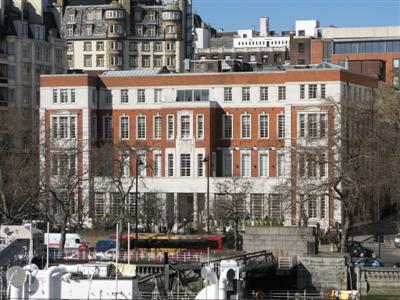
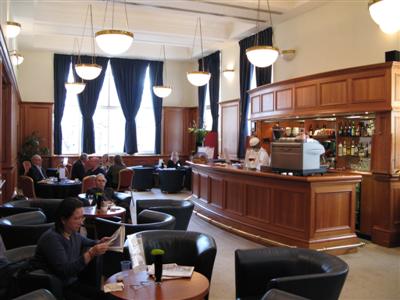
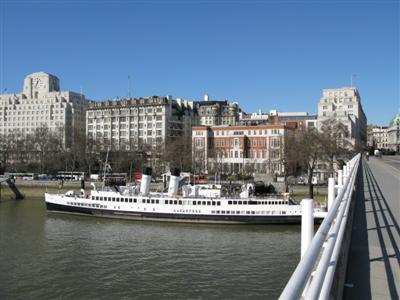
A short interview by Rod Sloane of me using his iPhone and AudioBoo to publish it. The interview took place at the Institution of Engineering and Technology at Savoy Place, London. I am a Chartered Engineer and Member of the IET.

A grand building. The BBC used to live here when radios were powered by steam.


With a quiet and comfortable members lounge.


Which overlooks the Thames by Waterloo Bridge


Excellent conference and meeting facilities

Labels: , , , ,

Can you point me at the best web sites created with MindManager?

Not catalogs of MindManager maps e.g. Mappio and Biggerplate or web sites which use MindMnager map images in them but web sites created using MindManager's web export or with an AddIn e.g Map4Web or Aha!VisualWebExport.

A few have been mentioned in this Question on LinkedIn "Can you point me at good examples of web sites created with MindManager? Or describe intranet sites where possible."

I want to be able to show a client some examples of best practice, so he and I can formulate some ideas about the best way export his knowledge to his clients.

I have a "catalogue" of MindManager export web sites I have produced but I would be surprised if they were the best in class. I must add the one I am currently working on called ConferenceREACTION.


Please add links to the best MindManager web exports in your comments to this blog.

Labels: , , ,

Thursday, 20 August 2009

Framing your Images in MindManager


It is easy to add images to a MindManager map. You can take them from the library, insert an image from a file on your drive, drag or copy and paste them from other applications. Here are some ideas for framing the image.

Note: I started by adding the cartoon you see as a floating image and then copied it to the branches. This centres the image in the topic as opposed to taking the top, bottom, left or right postion.

The first option is to place the image in a simple rectangle topic shape, then margin is increased and fill colour added. Note: if you use a GIF image with a transparent background you will not get a frame.

The second option is to add a topic shape from those in the library and then adjust the margins to suit. You could also use a clip art image of a picture frame.

Click the map to see more detail: Frames for Images

Thanks to Simon Ellinas for the cartoon - me and my favourite Tablet PC the HP TC1100.

Labels: , , ,

Tuesday, 11 August 2009

Using MindManager on the Tablet PC in ink mode

Michael Deutch has written this blog recently:

Touch Me: 10 Resources to Learn More about MindManager’s Touch Capabilities

To prompt discussion about using MindManager on the Tablet PC. For some reason that neither Michael or I can work out my comments are not being published. I have tried from different PCs & browsers. So here is my positive and critical criticism of this mode:

Michael, thank you for referring to my efforts with the Tablet PC and MindManager above.

I have to admit to being someone who has used MindManager Ink mode a few times a week since 2005 when MindManager X5 Tablet became available. It has gone through 4 versions of HPs Tablet PCs currently a 2710p but the TC1100 was the best!

I use it in these three modes:

First: for personal brainstorming. Often standing up and away from the office desk.

Second: for personal note taking and often producing the minutes at meetings.

Third: for recording and publishing events on the web. Frequently I work with teams of people like Maurice mentioned and linked in your blog, to produce a comprehensive record of public and private events. These range from individual speakers, to management meetings, to two day annual conferences, to a rock festival. Using MindManager for three days in a field and in the dark later in the day must be one of the extreme uses.

Using MindManager ink mode is much less instrusive to the meeting than using a keyboard and a more fluid recording process.

MindManager ink mode is a core tool for ConferenceREACTION and the web export is used to produce all the web sites.

BUT MindManager ink mode has been frustrating me since 2005. Why?

1. The eraser on the end of my stylus does not work in MindManager. It does in all other applications.

2. The colour of the ink is not the colour of the converted text. It becomes the default colour.

3. The ink to text conversion was comparatively good on release in 2005. Better than XPs TabTIP but Vista overtook it and Windows 7 streaks away into the distance.

4. The conversion of ink to graphic images is poor. Primary concern is the conversion of sketches but it also applies when you want to put an Ink mind map in a document or on a web page. Borders appear around the ink and there is a granularity not present in the native MindManager map.

5. The clicking the ink colour tool does not return the stylus to ink mode from eraser mode but clicking the ink thickness tool does.

6. The lasso tool (ink dragging) is often sluggish taking several seconds to settle into the new position.

7. The high CPU usage of MindManager in general and the extreme CPU usage e.g. > 60% CPU time when the stylus is applied to the screen. Not good for someone who inking all day! This halves the battery life of Tablet PCs.

8. That there has been no significant development of ink mode since 2005!

9. I would like the mode to be associated with the map. That is when I change from a map I am editing in ink mode to a map that was previously being edited in mouse mode I want the the mode to change to mouse mode.


Despite all the above I will continue to use MindManager Ink mode because it does a brilliant job. You can just do it in pictures.

Labels: , , , ,

Friday, 24 July 2009

Excel Spreadsheets and Ranges in MindManager Web Exports

Yesterday I was training a client team. They had already been using MindManager to create a series of internal web sites for sharing information within their multi-national group, suppliers and clients, They had created a new web export template to suit their purpose and produced some elegant web pages linked to different sources of information. One area in where they reached the "It's not doing what I really want" limit was the handling of spreadsheet information. Here are some suggestions that arose from that discussion, many of which I have tried previously and some which may be relevant to other file types e.g. Word and PowerPoint.


The Standard Link


Add a hyperlink to the spreadsheet file in the topic or in the topic text. There are more options in a topic link e.g. adding an argument which opens a specific worksheet in the spreadsheet. The standard link to a file will take a copy of the spreadsheet and place it in the Linked Documents folder of the web export. You can create a web link to a networked version of the spreadsheet with read only rights. Thus web site users will see the current data.

Advantages:
  • Easy to do
  • The original is not accessed by the user. They can do what ifs on the spreadsheet.
Disadvantages:
  • Excel has to be loaded and the file opened which takes time.

The Excel Range

In MindManager 7 and 8 you can add an Excel range to a topic. This works well when viewing the map in MindManager. The data is refreshed every time the map is opened and can be refreshed with F5 at any time. Data can be placed in relationship to other information on the map e.g. sales data next to a list of outstanding invoices.

Advantages:
  • Works if you are using a clickable image export. You see a snapshot of the spreadsheet ranges in the map.
Disadvantage:
  • In other web export you see nothing except for a Data Container marker i.e. the spreadsheet was here but MindManager does not handle it in this export :( !

The Cut and Paste


You can cut and paste a spreadsheet range in to the topic notes. This creates a table.

Advantages:
  • Easy to do.
  • Information appears when the web page is loaded.
Disadvantages:
  • Formatting is not the same and in my experience cell heights get larger. For ranges more than 4 x10 cells the post paste editing required to tidy up makes this unacceptable.

The Excel Web Export

Use the Excel "Save as Web Page" option. There are several options when doing this but the principles are that you either create web page which is a static snapshot of a range or whole spreadsheet or a more interactive web page which permits e.g. changing data and data sorting. Use a hyperlink in the map to point at this HTML file

Advantages:
  • The data owner can republish the Excel web page after each update or save (an automated option in the publication process) of the spreadsheet.
  • The formatting of your spreadsheet is reproduced
  • The web page loads quickly
  • The publisher can create several views of the spreadsheet for different users and save them as individual pages e.g. for an improvement process monitor: Completed actions, over due actions, department X actions
Disadvantages:
  • The Excel web page is external to the MindManager web export i.e. the content does not appear inside the export page template. I suggest you use the open in new web page option in the Hyperlink. Workaround: You could post export paste the Excel HTML into a "blank" web page created during the export but I really wish Mindjet which allow HTML snippets to be added to topic notes!
Do you have any better strategies?

Labels: , , ,

Friday, 17 July 2009

Devising a new game with MindManager - Cricket Darts

This afternoon it's raining in Alresford and probably three miles away in Cheriton. I am the games leader for a social evening and the sunny weather plan was cricket! There will have to be a form of cricket played in the Cheriton Cricket Club pavilion using darts (I hope the board is still there). I did find a game of darts called Cricket on Wikipedia but it is not close enough to the original for me. So here are my rules:


After the practice game the batsmen will have to throw in batting gloves and the bowlers will have to hop on one leg!

Labels: , ,

Wednesday, 24 June 2009

Adding new topic shapes to your MindManager library

In the MindManager Library there is a section called Shapes. It contains three folders: Ovals, Rectangles and Rounded Rectangles. Any of these shapes can be applied to a topic by dragging and dropping or selecting a topic and then clicking the required shape. This can be used to give another level of emphasis to your maps. If you need to change the colour of a shape or remove / add a dot, duplicate and then open in your image editor.

What about adding your own shapes to the library? Very easy add a new folder (right click the shapes folder) and then follow the instructions on my Creating New Topics Shapes in MindManager map.

I created a new shape from my logo by editing it and adding a boundary in Paint.net. I also gave a it a transparent background. Then I added it to Shape Library and used it for the central topic of the map. You can see in the map some of my choices may not be that clever. If the shape had been applied to the main or subtopics the background would not be an issue.

This morning I was creating a new shape from a sandcastle image during an online client training session. It soon be came apparent that the aspect ratio of the shape image is dependent on the text string height and width. You need to choose shapes that look good when crushed, stretched or otherwise distorted!

There are a few ways to mitigate the distortion:
1. Control the text width in Format Topic or by dragging the left and right text boundaries
2. Font size and type
3. Edit Content Margins in the Library Shape or Format Topic > Size and Margins. See the map.

Does anyone have some great examples of custom shapes in their MindManager maps?

Labels: , , , ,

Friday, 12 June 2009

Writing books with MindManager

It's a very simple process assuming you are going to export the map to Microsoft Word.

The Central Topic is the Title.

The Main Topics are the level one headings.

The Sub Topics are the level two headings and so on.

The Notes are the paragraphs and or tables that appear after the headings. Use a Note on the Central Topic to produce a frontispiece for the book. Notes can contain images and tables. Use tables to create text columns and to align images and text on a page. Unfortunately there are not the image wrapping facilities that you get in Word. Use linked images if the image is still being edited or will be updated. Every time MindManager is opened the image will be updated in the Notes or you can refresh it (right click the image and refresh).

Relationships are cross references uni-directional or bi-directional if you have an arrowhead at both ends.

Many of the other items on a map will appear in the Word document: Icon markers, callout topics, review comments, text markers, task information (appears in a small table).

You can also include the map as a graphic below the title and insert a table of contents. You can control the numbering style and insert header and footer information. Finally you can choose a Word Template to use for the exported document. You might have one template for the printed book - A5 portrait double sided booklet and another for the eBook - A4 landscape 2 pages per sheet. For fiction book you can use the Word Template style to hide all but the chapter heading.

Floating topics do not appear in the exported document, so they can be useful places to write notes to yourself. Use View > Show/Hide to hide them before exporting if you do not want them to appear on the map graphic!

Use filtering to hide topics which are not finished or not required e.g. clauses in a quote before exporting.

This is how I produced my 20 page training manual "An Introduction to MindManager" The map on the cover of the booklet is the map that produces the book.


Only available from Cabre for £7.50

Now for the most important part of this blog. MindManager is a great tool for containing and publishing your book. It's easy to reorganise, to write the parts of the book you have just had the inspiration for and to identify the completeness of sections with the task complete icons. However this is only one part of writing a book. I think you should have a map for many of the following (obviously some are not required for non-fiction):

  • Audience - Who is going to read it. What do they want to read. etc.
  • Research - The background, your sources, references etc.
  • Characters - Create a word and image map(s) which describe your characters and their relationships to other characters and the plot.
  • The Plot - What leads to what etc.
  • Writing process - Your plan for writing the book
  • The Publishing Plan - Who will do it. How will it be promoted. etc.
  • Finally - Why are you doing it? This could be a financial or philanthropic map!
You may like to suggest some more by adding a comment to this blog. If you have any experience of writing books with MindManager please tell me about them.

If you need any help with using MindManager to produce documents, please contact me.

Labels: , ,

Tuesday, 9 June 2009

MindManager Add Ins and other related software

This is work in progress. I am compiling a map of the MindManager add ins and related software. There are many more to be added to the map but I thought there were enough now to share with you.

Click the map to see the full size clickable image map.


Please add your suggestions by commenting on this post.

Labels: , , , , ,

Thursday, 4 June 2009

Using MindManager with your bicycle or bike

This is one I did earlier and a video I found on YouTube.

First my map of how to programme a two button cycle computer. the sort that tell you how far you have gone and how slow you have been. I average about 12 mph on my road bike. I was getting lost as to how many buttons to push and when. I think the process of mapping it fixed it in mind but I always had the reference on one sheet of A6 when I needed it.


Does that make it clearer?

Here is a video by Paula where she shows how she runs and tracks the maintenance of her Pegasus bike MindManager.


That is definitely getting value out of using MindManager.

Labels: , ,

 
Google Analytics Alternative